Improved Social Menu v1.3.1
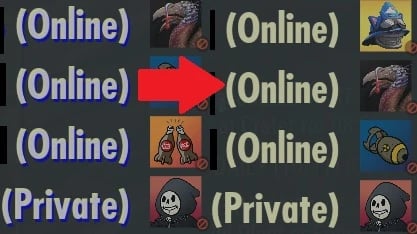
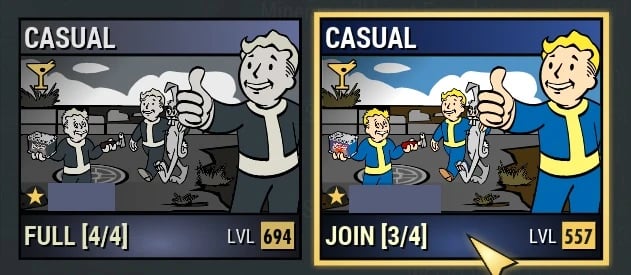
Improved Social Menu fixes friend selection switching when trying to join a world, removes popups and team creation delay, and adds friend and recent counts, character names, name redaction, and more.
Features
- Fixes friend selection switching when trying to join world.
- Removes popups and team creation delay.
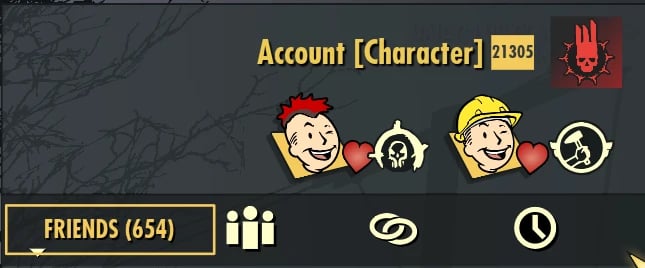
- Adds friends and recent counts.
- Displays character names.
- Redacts your own or other player names.
Installation
The social menu interface, overlay.swf, cannot be loaded like other mods by adding a separate .ba2 file to the load order.
It must replace the original overlay.swf file included in the main SeventySix - Interface.ba2 file. The zip file includes a patcher for this purpose. This mod cannot be installed with any mod manager.
Alternatively, you can download and replace the patched SeventySix - Interface.ba2 from the optional files if you cannot run the patch script on your machine. It is about 110MB in size.
If you have experience repacking with Archive2, you can install it manually. Make sure to back up the original interfaces file.
- Open
Archive2.exefromImprovedSocialMenuPatch/Archive2/. Archive2 requiresvcredist2012to run. - Select
File > Open.... - Navigate to
Fallout76/Data/and openSeventySix - Interface.ba2. - Select the
interfacesfolder from theImprovedSocialMenuPatchfolder and drag it to the opened Archive2 window. - Select
File > Save. - Optionally, copy
ImprovedSocialMenuConfig.jsonto your Fallout 76/Data/ folder. - Done.
To install by running the patch script, which uses Archive2 and requires vcredist2012 to run:
- Extract the
ImprovedSocialMenuPatchfolder from the zip archive to your Fallout 76/Data/ folder. - Open the extracted folder:
Fallout 76/Data/ImprovedSocialMenuPatch. - Run
ImprovedSocialMenuPatch_PATCH.bat. - Optionally, copy
ImprovedSocialMenuConfig.jsonto your Fallout 76/Data/ folder. - Done.
The patch script makes a backup of the Interfaces file currently in Fallout76/Data. When updating an existing version of the mod, run ImprovedSocialMenuPatch_UPDATE.bat so it first reverts the changes to default and then installs the new version.
Do not run the update script when updating the mod after a new game update. Use the patch script.
The patch script automatically:
- Makes a backup of the existing
SeventySix - Interface.ba2file. - Extracts all interfaces from the original file.
- Overwrites the original
overlay.swfwith the modified one. - Repacks all interfaces.
- Copies the patched
SeventySix - Interface.ba2to your Fallout 76/Data folder. - Removes temporary files used for repacking.
If patching was successfull, this is what the result will look like:
C:...Fallout76DataImprovedSocialMenuPatch>copy "..SeventySix - Interface.ba2" "SeventySix - Interface.ba2.bak"
1 file(s) copied.

C:...Fallout76DataImprovedSocialMenuPatch>Archive2archive2.exe "..SeventySix - Interface.ba2" -quiet -extract="Archive2data"
C:...Fallout76DataImprovedSocialMenuPatch>copy /Y "interfaceoverlay.swf" "Archive2datainterfaceoverlay.swf"
1 file(s) copied.

C:...Fallout76DataImprovedSocialMenuPatch>Archive2archive2.exe Archive2data -quiet -compression=None -create="SeventySix - Interface.ba2"
C:...Fallout76DataImprovedSocialMenuPatch>copy /Y "SeventySix - Interface.ba2" "..SeventySix - Interface.ba2"
1 file(s) copied.

C:...Fallout76DataImprovedSocialMenuPatch>rmdir /S /Q Archive2data
C:...Fallout76DataImprovedSocialMenuPatch>del /Q "SeventySix - Interface.ba2"
C:...Fallout76DataImprovedSocialMenuPatch>pause
Press any key to continue . . .
Settings and configuration
Customization is optional, and ImprovedSocialMenuConfig.json is not required. Default values for each option are listed below.
To customize the configuration, copy ImprovedSocialMenuConfig.json from the ImprovedSocialMenuPatch folder to your Fallout76/Data folder.
If the config file is present, it will be read every 10 seconds and all changes will be applied.
Changes may not apply while in the main menu. Some changes, such as hiding players, will not be applied until the player list refreshes.
Fixed player selection jumping when trying to join another player’s world is enabled by default and is not customizable.
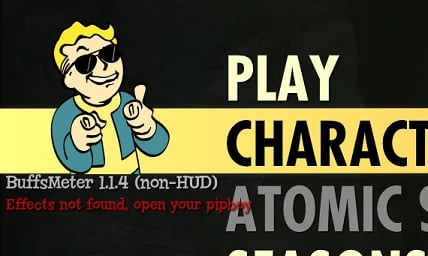
hudModLoader, list of mod names to load in the “Overlay” game layer, case-sensitive (Update 1.0.4).
The main goal is to stop HUDMenu mods reloading on each raid stage completion, primarily BuffsMeter. Loading mods in this layer also allows detection of key presses when the social menu is open, best shown in Quick Actions.
As long as mods are listed in the game’s load order, they can be dynamically loaded and unloaded with this parameter once the config file is reloaded.
Not all mods will work as intended, or at all, when loaded this way. Some are closely tied to HUDMenu elements, such as ImprovedHealthBars and HUDEditor. BuffsMeter also takes data for XP Bar and HP percentage from HUDMenu, and those properties will not work.
Working mods: BuffsMeter, HUDChallenges, HUDPlayerList, CustomRadios, Quick Actions.
Not working, HUDMenu dependent: HUDCondition, StatsMeter, VendorLog, FFHudMenu (Fanfare free), HUDEditor, CustomCrosshair, PLMHudMenu (Perk loadout manager), ImprovedHealthBars, CompatibleShowHealthRedux, etc.
delayModLoader, set the time in milliseconds to delay loading mods specified in the hudModLoader list above. (default: 30000 = 30s) (Update 1.0.4)
autoFriendInvites : false/”decline”/”accept”, automatically accept or reject incoming friend requests (default: false) (Update 1.3.0).
If set to “reject”, you can still send friend requests. This only applies to incoming requests.
showCampFastTravelButton : true/false, show the fast travel to camp button for players with publicly visible vendors (default: false) (Update 1.3.0).
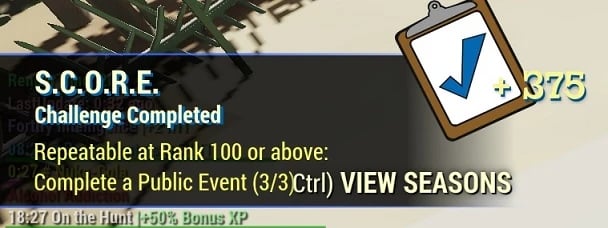
hideChallengeCompletePopup : true/false, hide the popup for completed challenges (default: false) (Update 1.2.0).
This also hides all world and scout challenge popups when switching characters.
disableChallengeCompleteCtrlKey : true/false, disable the CTRL key, Y key as of 17.3.26., for opening the seasons menu after completing S.C.O.R.E. challenges (default: false) (Update 1.2.0).
You can enable just this 2nd parameter if you want to show challenges but prevent opening the seasons menu.
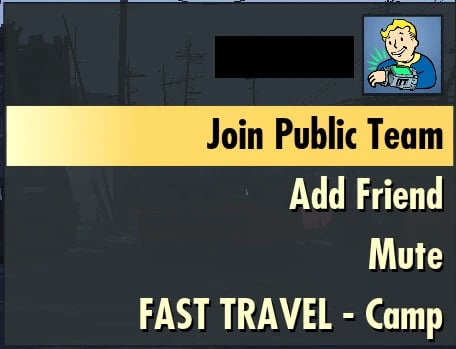
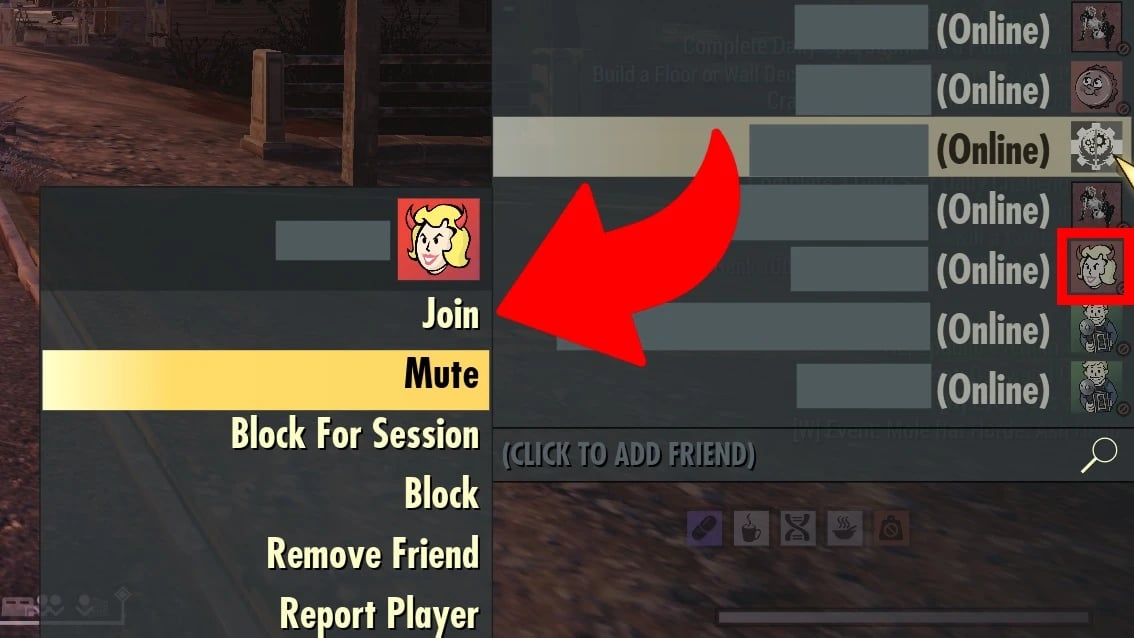
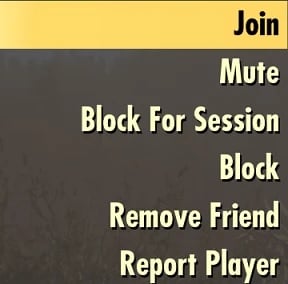
hidePlayerOptions, hide popup options when clicking on a player name, case-sensitive (Update 1.1.3).
Example:
"hidePlayerOptions": [ "Block For Session", "Report Player" ],
notificationHideDelay, delay in milliseconds before hiding team notification pop-ups (default: 0) (Update 1.0.8).
- 1 = hide notifications completely
- 0 = default value as set in game (7-10 seconds for most notifications)
- any positive number = time in milliseconds after which to hide notifications, e.g. 2000 (2 seconds)
hideBestBuildNotification : true/false, hide best build pop-ups and stop them from preventing map opening (default: false) (Update 1.0.8).
hideSelfName : true/false, hide your own name from appearing in the social menu (default: false) (Update 1.0.8).
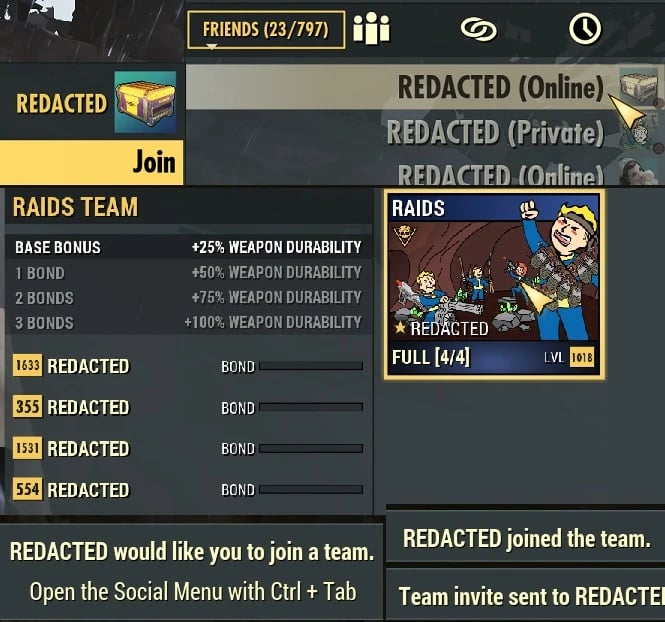
hideAllPlayerNames : true/false, hide your own and all other player names from appearing in the social menu (default: false) (Update 1.0.8).
hideAllPlayerNamesReplacement, replace hidden names with this string (default: “REDACTED”) (Update 1.0.8).
Player names are shown even when “Show Other Players’ Names” in the game setting is disabled, so these options entirely remove names from the social menu.
Applies to:
- Friends list, Team list, Recent list
- Team notifications, invites, joined, left team…
- Team selection screen
- Selected user pop-ups
hideVignette : true/false, hide or show the vignette effect, the black shade behind the friends list (default: false) (Update 1.0.6).
topSortFriends, list of names to show at the top of the friends list when online, case-sensitive (Update 1.0.4).
Example:
"topSortFriends": ["player 1", "player 2", "player 3"]
hideOfflineFriends : true/false, hide offline players in the Friends tab (default: false) (Update 1.0.2).
hideDisconnectedRecent : true/false, hide players not on the current server in the Recent tab (default: false) (Update 1.0.2).
defaultSelectionJoin : true/false, set “Join”, or the top-most option, as selected when clicking on a friend’s name (default: true) (Update 1.0.2).
disableFriendsGrouping : true/false, disable grouping friends by connection status, online, main menu, offline… (default: false) (Update 1.0.2).
Can be used with hideOfflineFriends so the list does not jump around.
showTeamMemberCount : true/false, show the number of players per team in the Teams tab (default: true) (Update 1.0.1).
hideTextShadow : true/false, hide the blue text shadow behind player names (default: true).
The blue shadow was removed with game update 1.7.16.13 (3.12.2024.).
hideTeamsAvailablePopup : true/false, hide the “Public teams available” popup when joining a new server. It is not hidden by the “Hide Team Notifications” setting in game options (default: true).
showFriendCount : true/false, show the number of players and online players in the Friends tab (default: true).
showRecentCount : true/false, show the number of players and players in the current server in the Recent tab (default: true).
createTeamDelay : number, set the time in milliseconds it takes to give back controls after creating a public team (default: 25, default in game: 1000).
showNameFormat : string, set a custom format for displaying account and current character names.
Accepts {accountName} and {characterName} strings. (default: “{accountName} [{characterName}]”, default in game: “{accountName}”)
Uninstallation
- Run
ImprovedSocialMenuPatch_REVERT_PATCH.batin yourFallout 76/Data/ImprovedSocialMenuPatchfolder. - Alternatively, manually copy your backed-up original
SeventySix - Interface.ba2file toFallout 76/Data. - If you do not have a backup, verify the files on Steam so it downloads the original file again.

 Loading...