BuffsMeter – Active Effects on HUD (now with icons) v2.0.0
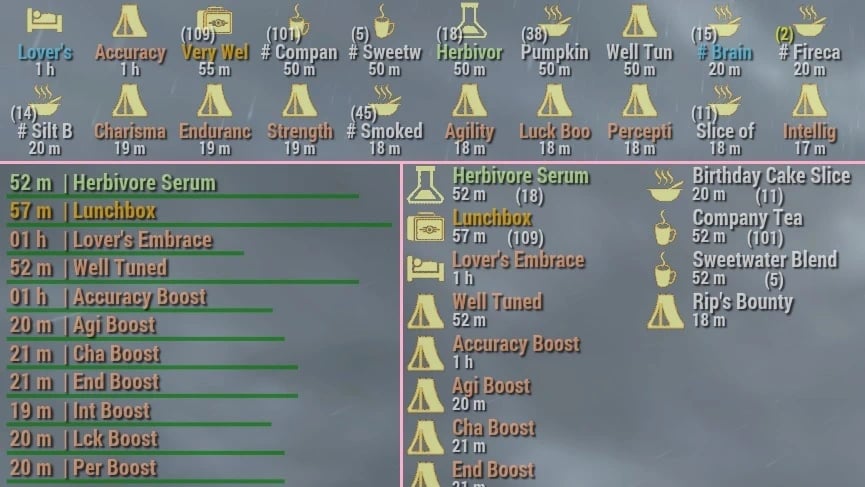
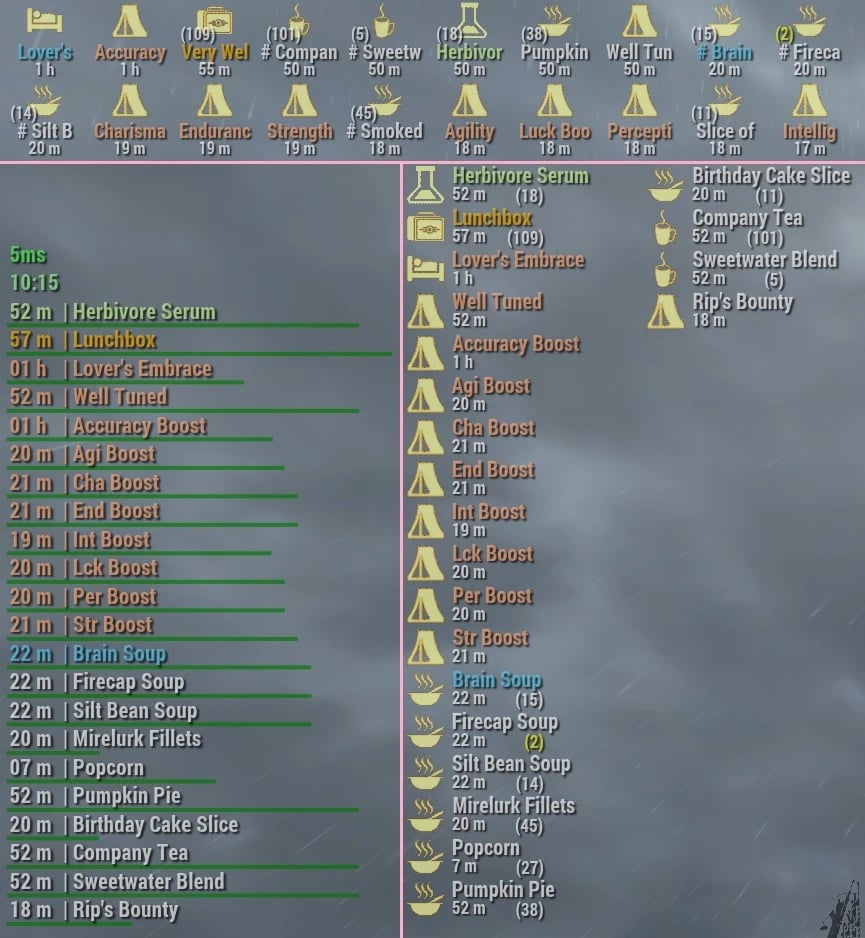
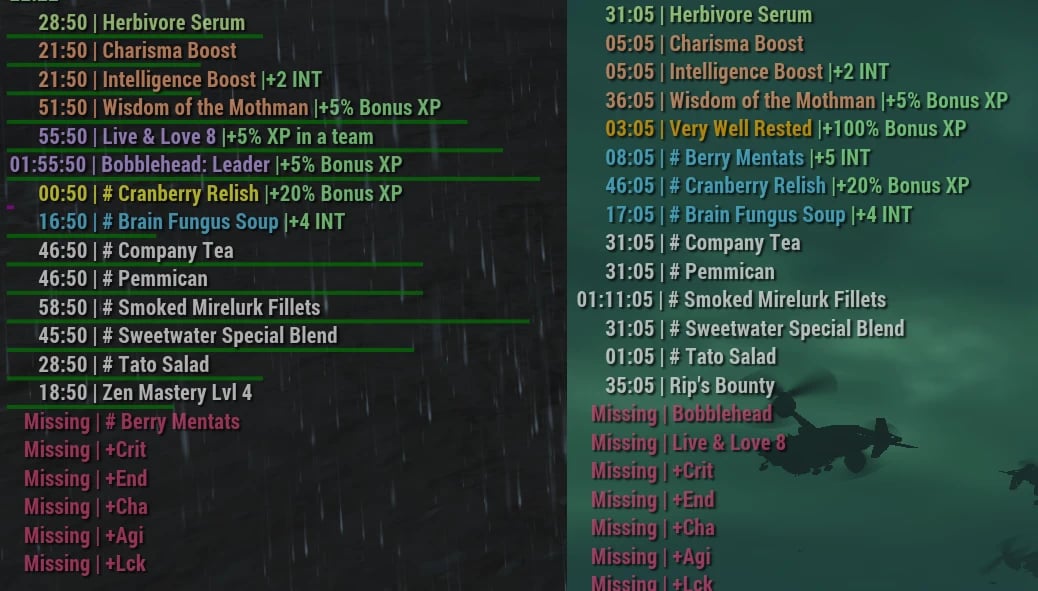
BuffsMeter is a customizable HUD widget that shows active effects and buffs, with an optional checklist of missing effects and an icons widget.
Required mods:
- Improved Social Menu, required if not using HUDModLoader
- SFE, required for data transfer between Pipboy and the HUD widget
- HUD Mod Loader, required if not using ImprovedSocialMenu
Features
- Shows active effects and buffs on the HUD.
- Shows a checklist of missing effects.
- Supports regular and icons-based widgets.
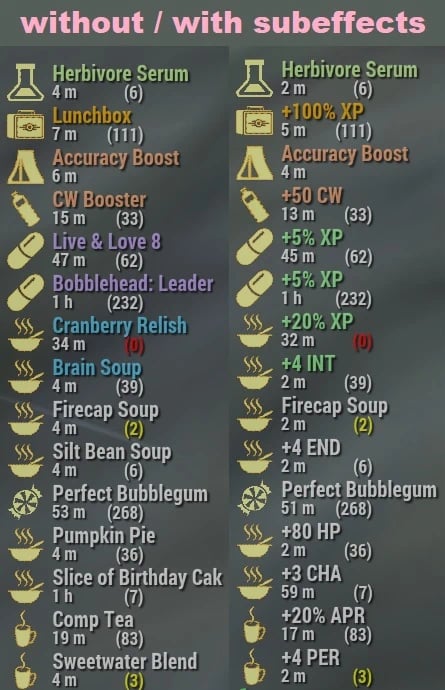
- Supports custom sorting, colors, effect names, subeffects, duration bars, XP bars, SCORE bars and pet XP bars.
- Supports HUD hotkeys, HUDTools menus and controller navigation.
Specifications
- The default
quickEffectsTabHotkeyvalue is192, which should be tilde (~) on an English keyboard, below ESC. - The default widget position uses
0for the left or top edge,1920for the right edge and1080for the bottom edge. - The default widget width is
250and the default text size is18. - The default effect refresh interval is
1000milliseconds. - The default duration bar maximum duration is
600seconds and its default height is4pixels.
Important notes
Due to Pipboy changes on 3.3.2026., several changes were required to keep the mod functional.
The Pipboy now updates data only for the currently open TAB. You must open the EFFECTS tab to sync data to the HUD widget. The quickEffectsTabHotkey parameter switches to the EFFECTS tab from any PAGE or TAB with one key press. Its default value is 192, which should be tilde (~) on an English keyboard, below ESC. See the Hotkey notes section.
The previously used enableManualPipBuffDataSync parameter has been removed.
Effect duration data is no longer available in the Pipboy, so duration bars now use the maxDuration property in the durationBar field. For example, setting maxDuration to 600 seconds means that only the last 10 minutes of an effect are reflected on the duration bar. Effects lasting more than 10 minutes show a full bar.
The duration property sorting option has been removed.
The only data showing the remaining duration is text in the effect name, such as 7m in Brain Bombs (7m). Effect durations are therefore less precise than before.
Server time data has been removed because it is not available on the STATS page and would require switching to the DATA or RADIO tab each time it was synchronized.
PERKS are no longer shown on the widget because they now have their own tab.
Limitations
- Active effects data is visible only in the Pipboy, so it is synchronized only when you open the Pipboy EFFECTS tab. Widget data is extrapolated from that point.
- Effects activated from the radial menu or favorite keys are not shown until you reopen the Pipboy.
- Effects such as adrenaline, which refresh on kills, are not refreshed automatically.
Installation
Via mod manager: not recommended. If the mod does not load, this is most likely the cause. The author does not use mod managers and cannot provide assistance for installations made with them.
Known issues with mod managers:
- Mods do not work at all, even with no other mods loaded, when repacked or bundled with wrong settings.
- Mods do not apply configuration changes when an old configuration file is cached.
If you install with a mod manager, step 4 or 5 of the manual installation is also required.
Manual installation:
- Download the zip file.
- Extract
BuffsMeter.ba2andBuffsMeter.jsonto the Fallout 76Datafolder, for exampleSteamLibrarysteamappscommonFallout76Data. - Add
BuffsMeter.ba2to the load order inProject76Custom.inifor MS Store/Xbox orFallout76Custom.inifor Steam. These files are located inC:Users%username%DocumentsMy GamesFallout 76.sResourceIndexFileList=other mods here, BuffsMeter.ba2, HUDModLoader.ba2
- Option 1, no DLL mods required:
If using TextChat, follow Additional Steps for Text Chat Users in the HUD Mod Loader description.
- Install HUD Mod Loader.
- After installing it, check whether BuffsMeter is listed in
Datahudmodloader.ini. If it is missing, add it on a new line and save the file.
- Option 2, alternative to step 4: requires SFE to be up to date with the latest game version.
- SFE is no longer getting updates. You can try using xScal or ZFE instead, at your own discretion and risk.
- Install xScal or ZFE.
- Install Improved Social Menu. It loads the mod in the Overlay game layer. See Overlay Mod Loader settings for more information.
- Add
BuffsMeterto thehudModLoaderlist inImprovedSocialMenuConfig.json, if it is not already there:"hudModLoader": ["BuffsMeter", "CustomRadios"],
Updating
Extract only the .ba2 file to the Fallout 76 Data folder.
The configuration file is backwards compatible and does not need to be replaced with a new version. New features can be edited in manually.
You can search the description with CTRL + F in a web browser by update number to see which new parameters were added.
Compatibility
Not compatible with FastPip because it uses the same file to transfer active effects data to the HUD widget, newpipboymenu.swf. The showAllPipboyTabs parameter provides similar functionality.
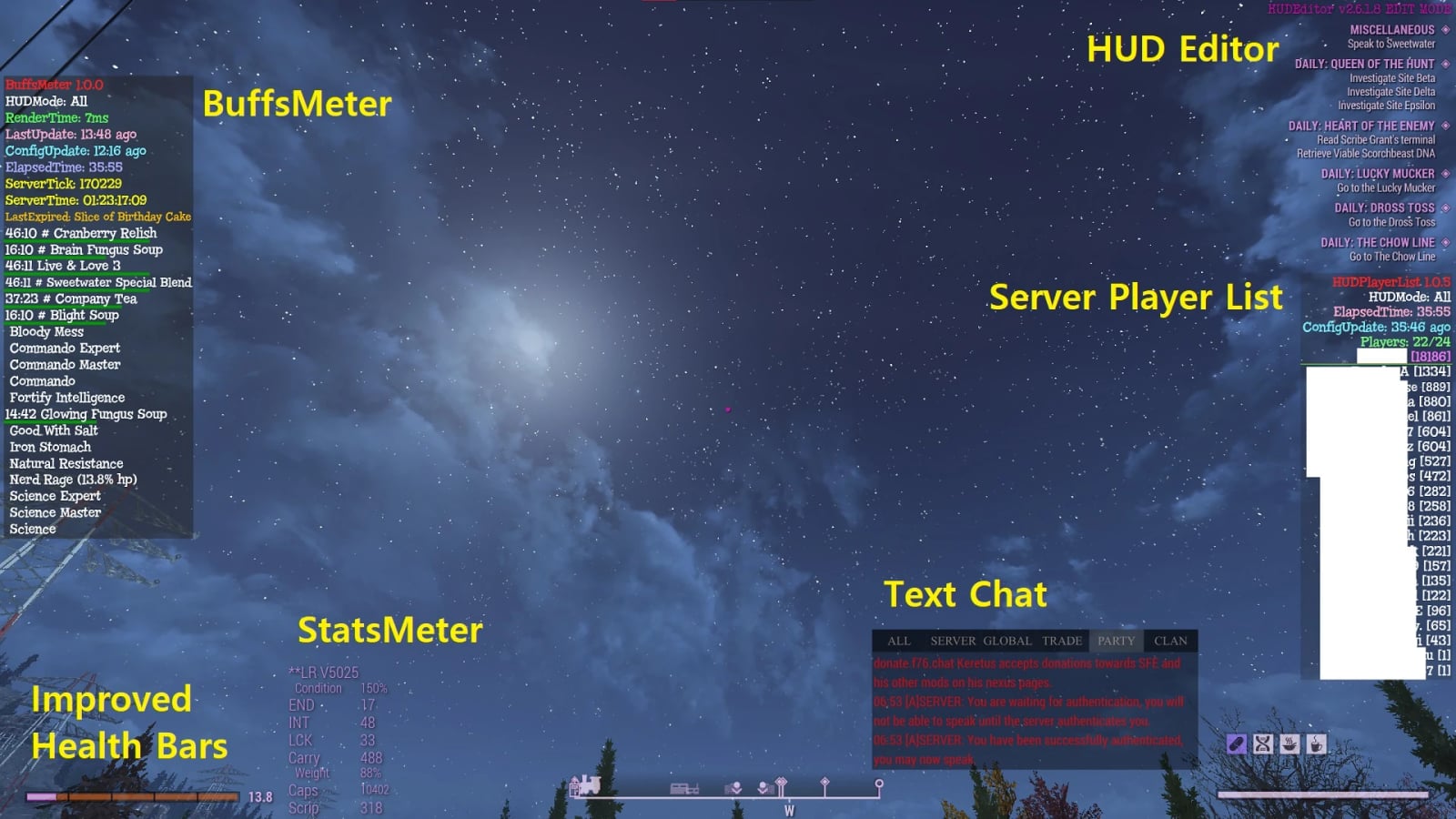
Compatible with TextChat/HUDModLoader and should be compatible with other HUD mods. See Installation.
Tested working with HUD mods: Text Chat, HUD Mod Loader, HUD Condition, HUD Challenges and Events, Server Player List, Perk Loadout Manager, Stats Meter, Vendor Log, HudEditor, CustomCrosshair (bundled with HudEditor), Fanfare Free, Improved Health Bars, Compatible Weight Indicator, Compatible Show Health Redux and HudBar Percent Widgets.
Tested working with Pipboy mods: BetterInventory (Unofficial), Invent O Matic Pipboy (Unofficial), Improved Pipboy Stats and Camp Swap Lock, loaded before BuffsMeter.
Should be compatible with all other non-HUD mods.
Example load order:
sResourceIndexFileList=BetterInventory-UO.ba2, InventOmaticPipboy-UO.ba2, ImprovedPipboyStats.ba2, ImprovedHealthBars.ba2, FanfareFree.ba2, VendorLog.ba2, PerkLoadoutManager.ba2, HUDEditor.ba2, StatsMeter.ba2, CompatibleWeightIndicator.ba2, HudBarPercentWidgets.ba2, HUDPlayerList.ba2, HUDChallenges.ba2, HUDCondition.ba2, CampSwapLock.ba2, BuffsMeter.ba2, HUDModLoader.ba2, ChatMod.ba2
Requirements
SFE is required for transferring data between the Pipboy and HUD, with data saved to a file. If the mod is loaded through HUDModLoader, data can alternatively be transferred through HUDTools and SFE is optional.
Hotkey notes
Any hotkey property in the configuration file can be listed as a key code or a value:
"toggleChecklistHotkey": 112
"toggleChecklistHotkey": "F1"
Accepted hotkey values are case-insensitive.
- Letters:
"a","b","c","d","e","f","g","h","i","j","k","l","m","n","o","p","q","r","s","t","u","v","w","x","y","z" - Numbers and numpad keys:
"0","1","2","3","4","5","6","7","8","9","n0","n1","n2","n3","n4","n5","n6","n7","n8","n9","n*","n+","n-","n.","n/" - Function keys:
"f1"through"f12" - Special keys:
"bksp","tab","enter","shift","ctrl","alt","pause","caps","esc","pgup","pgdn","end","home","ins","del","sel","numlk","scrlk" - Symbols:
";","=",",","-",".","/","`","","'" - Arrows:
"left","up","right","down"
Configuration
The configuration file is BuffsMeter.json in the Fallout 76 Data directory.
For editing, Notepad++ supports validation through Language > JSON5. Any text editor can be used, but comments are supported only in JSON5. Use JSON5 validation or comments will be reported as errors.
The configuration file is read every 10 seconds. Changes are applied without restarting the game.
If your language uses special characters in effect names, such as Ä Ö Ü in German, save the configuration file in UTF-8 format. Notepad might default to ANSI.
Overlay Mod Loader settings
This section applies when the mod is loaded in the Overlay game layer by Improved Social Menu.
Mods loaded in this layer are not reloaded when a raid stage is completed, so the mod continues to function normally after each stage.
Advantages:
- The widget does not reset when raid stages are completed.
- The widget can be shown in more menus, including loading screens, the main menu, seasons and the atom shop.
- The mod can detect hotkeys for hiding, toggling visibility and toggling the checklist.
Disadvantages:
- The XP bar,
showXPBar, does not work. - The pet XP bar,
showPetXPBar, does not work. - The mod does not work without SFE.
Social Menu, CTRL + TAB, must be open for a key to register.
toggleVisibilityHotkey hides the widget if shown or shows it if hidden. It switches the HUDModesState value without editing the configuration and is not saved in the configuration.
forceHideHotkey toggles force-hide mode. Update 1.1.7.
toggleChecklistHotkey toggles checklist visibility and requires showChecklist in displayData. Update 1.2.6.
HUD Mod Loader settings
This section applies when the mod is loaded by HUD Mod Loader with HUDTools, versions 60.4+.
- Force Hide hides the widget until this option is pressed again. This is the same as
forceHideHotkeyin Overlay. - Toggle Visible hides or shows the widget. This is the same as
toggleVisibilityHotkeyin Overlay. - Toggle Checklist shows or hides the checklist. This is the same as
toggleChecklistHotkeyin Overlay. - Reload Config manually reloads the configuration file and applies only to
disableRealTimeEdit.
Open HUDTools menu: F11, or hold L3 on a controller or gamepad for a few seconds while the Pipboy is open.
The Pipboy menu changes pages and tabs while navigating with a controller, but should not confirm anything.
- Navigate: WASD or arrow keys, or Left Stick/DPad.
- Select: E, Enter or Space, or the A button.
- Close: Tab or Esc, or the B button.
Pipboy settings
When SFE is not found while waiting for an update after game updates, the widget can still be loaded in the background of the Pipboy interface. Make sure the Pipboy HUDMode is not hidden if you want the widget to show in this mode.
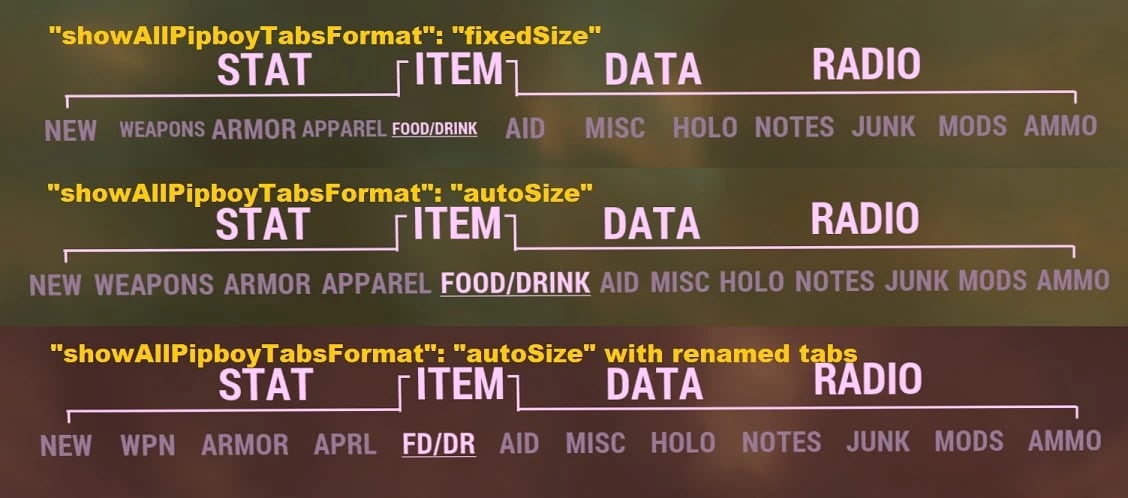
showAllPipboyTabs : true/false shows all Pipboy tabs at once without horizontal scrolling. It is inspired by FastPip and is not compatible because FastPip edits the same interface file.
showAllPipboyTabsFormat : autoSize/fixedSize controls Pipboy tab-name resizing. The default is "autoSize". If "autoSize" causes issues, use "fixedSize", which displays tabs as they appeared before version 1.5.1.
pipInventoryTabNames sets custom names for Pipboy inventory tabs. Default localized strings:
["$InventoryCategoryNew", "$InventoryCategoryWeapons", "$InventoryCategoryArmor", "$InventoryCategoryApparel", "$InventoryCategoryFoodWater", "$InventoryCategoryAid", "$InventoryCategoryMisc", "$InventoryCategoryHolo", "$InventoryCategoryNotes", "$InventoryCategoryJunk", "$InventoryCategoryMods", "$InventoryCategoryAmmo"]
quickEffectsTabHotkey quickly switches to the EFFECTS tab from any page or tab. Update 1.4.0. The default is 192.
prioritizeHUDToolsSyncOverSFE : true/false prioritizes Pipboy-to-widget synchronization through HUDTools instead of SFE. Do not use this when the mod is loaded in the Overlay layer, or the mod will stop working. It works only when the widget is loaded by HUDModLoader.
Icons widget settings
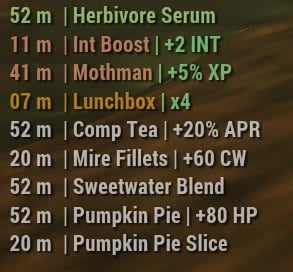
Updated in 2.0.0. The icons widget is disabled by default. Vertical and Horizontal layouts are included in the downloaded zip in the BuffsMeter-iconsWidget-layout-examples folder. Copy only the iconsWidget section into an existing configuration file to enable it.
Settings are configured in the iconsWidget object. Regular widget settings such as showSubEffects, hideTypes, hideEffects, sortBy, sortOrder, customEffectColors, customSubEffectColors and mapEffectNames also apply.
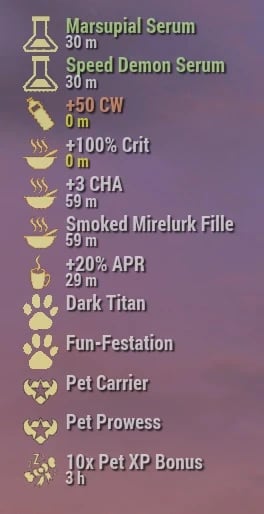
If subeffects are enabled, the first non-hidden subeffect for an effect is displayed instead of the effect name. Use shownSubEffects, hideSubEffects and hideSubEffectsFor to filter them.
- enabled : true/false, enables the icons widget. Default: false.
- disableDefaultBuffList : true/false, disables the default widget when the icons widget is enabled. Default: true.
- x, horizontal position. 0 is the left side and 1920 is the right side.
- y, vertical position. 0 is the top and 1080 is the bottom.
- scale, scale of the entire icons widget.
- offsetX, horizontal offset between icons. Positive values move right and negative values move left.
- offsetY, vertical offset between icons. Positive values move down and negative values move up.
- splitInColumnsRows, number of icons in one column or row.
- offsetColRowX, horizontal offset between icon columns or rows after splitting.
- offsetColRowY, vertical offset between icon columns or rows after splitting.
The text, duration and itemCount objects configure effect text. Each supports x, y, size, align : left/center/right and font. The text object also supports maxLength.
For text positioning, x uses 0 for the center, -16 for the left side and 16 for the right side of the icon. y uses 0 for the top and 32 for the bottom of the icon.
itemCount also supports enabled : true/false, lowCount, lowCountColor, noItemsColor, countChems and mapCountableEffectNames. Food, drink and alcohol items are always counted. CHEMS are counted only when listed in countChems, with case-insensitive partial matching.
"countChems": [
"serum", "very well rested", "scout",
"bobblehead", "live & love", "guns and bullets", "tesla science",
"mentats", "overdrive", "buffout", "bufftats", "psycho", "fury",
]
mapCountableEffectNames uses case-sensitive exact matching. The atom symbol at the end of an item name is omitted.
"mapCountableEffectNames": {
"Very Well Rested": "Lunchbox",
"¢Scout's Call": "Scout's Banner",
"¢Scout's Code": "Scout's Banner",
"¢Scout's Courage": "Scout's Banner",
}
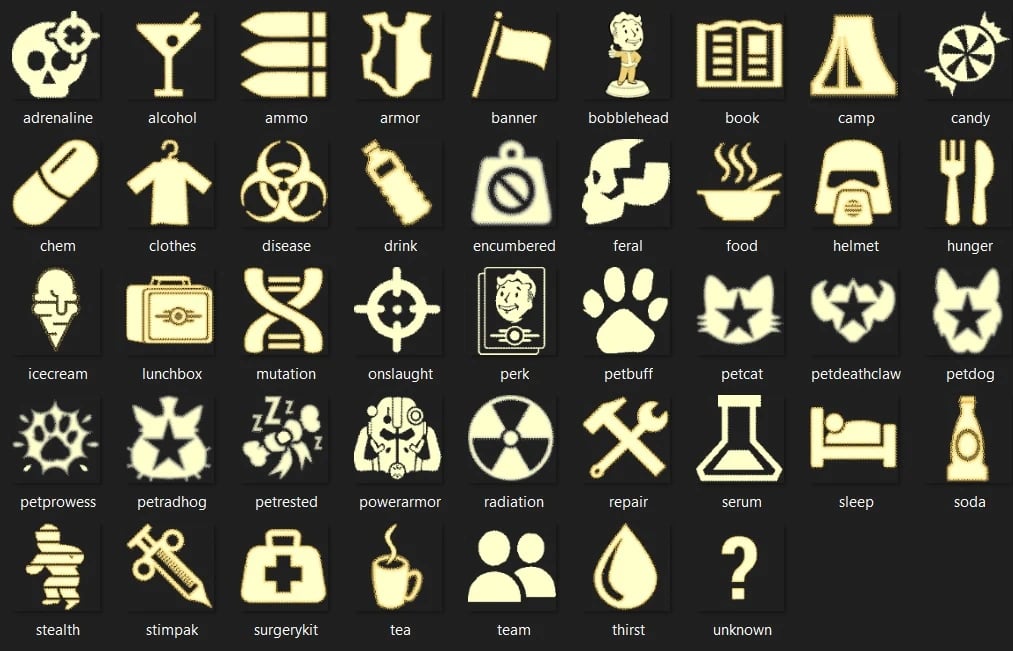
customIcons assigns custom icons to effects. If an effect does not match, the default icon for its effect type is used. Each icon name can be listed only once. Matching is case-insensitive and partial.
"customIcons": {
"team": ["team bonus"],
"lunchbox": ["very well rested"],
"banner": ["scout's call", "scout's code", "scout's courage"],
"sleep": ["rested", "well rested", "kindred spirit", "lover's embrace"],
"drink": ["carry weight booster"], // placed before "boost" camp buffs
"camp": ["well tuned", "rip's bounty", " boost"],
"serum": ["serum"],
"bobblehead": ["bobblehead"],
"book": ["wisdom of the mothman", "astoundingly awesome", "backwoodsman", "grognak", "guns and bullets", "live & love", "scouts' life", "tales from the west virginia", "tesla science", "u.s. covert", "unstoppables"],
}
Icons available in mod version 2.0.0 are sourced from game interfaces including the Pipboy, hudmenu, perks and map.
Widget settings
- x, horizontal position. Default: 0 is the left side and 1920 is the right side.
- y, vertical position. Default: 0 is the top and 1080 is the bottom.
- anchor : top/bottom, aligns the widget relative to the y value. With
bottom, y is the bottom coordinate. Default: top. Update 1.0.7. - ySpacing, vertical spacing between effect names. Negative values make the widget more compact. Default: 0.
- width, widget width. Default: 250.
- textSize, font size. Default: 18.
- textFont, text font. Default:
"$ChowderHead". - textAlign : left/center/right, text alignment. Default:
"left". - textColor, numerical or hexadecimal text color. Default:
"0xffffff". - textShadow : true/false, displays a text shadow. Default: true. Update 1.0.8.
- background : true/false, displays the background. Default:
"true". - backgroundColor, numerical or hexadecimal background color. Default:
"0x222222". - alpha, transparency of the whole widget. Values from 0.0 to less than 1.0 are semi-transparent and 1.0 is opaque. Default: 1.0.
- backgroundAlpha, background transparency. 0 loads the default, values from 0.0 to less than 1.0 are semi-transparent and 1.0 is opaque. Default: 0.5.
- blendMode, background blend mode. Default:
"normal". - textBlendMode, text blend mode. Default:
"normal". - disableRealTimeEdit : true/false, disables automatic configuration changes every 10 seconds. Default: false. Update 1.0.8.
HUD Opacity in the game settings can make alpha exceed 1.0. This does not apply to backgroundAlpha.
Effects display settings
- refresh, milliseconds between data reloads and redraws. Default: 1000.
- hidePermanentEffects : true/false, hides permanent effects such as perk cards, armor bonuses and addictions. Default: false. Update 1.2.2.
- hideEffectsAboveDuration, hides temporary effects above this duration in seconds. 0 shows effects for their entire duration. Default: 0.
- hideEffectsBelowDuration, removes temporary effects below this duration in seconds. Default: -15.
- warningBelowDuration, changes the color of temporary effects below this duration in seconds. Default: 30.
- showSubEffects : true/false, shows or hides subeffects. Default: true.
- showExpiredSubEffects : true/false, shows or hides subeffects below
hideEffectsBelowDuration. Default: false. Update 1.0.4. - shownSubEffects, case-insensitive list of subeffects to show. Update 1.3.1.
- hideSubEffects, case-insensitive list of subeffects to hide. Update 1.0.2.
- hideSubEffectsFor, case-insensitive list of effect names or types whose subeffects should be hidden.
- hideTypesState,
"hidden"or"shown". Removed. - hideTypes, case-insensitive list of effect types to hide. All effects of these types are hidden.
- showTypes, case-insensitive list of effect types to show. All effects of these types are shown. Update 1.1.9.
- hideEffectsState,
"hidden"or"shown". Default: hidden. Update 1.0.1. - hideEffects, case-insensitive list of effect names to hide or show according to
hideEffectsState. - debuffs, case-insensitive list of effects shown in the custom debuff color. Overencumbered and all diseases are automatically marked as debuffs. Update 2.0.0.
- checklistHiddenByDefault : true/false, hides the checklist until enabled with
toggleChecklistHotkeyor the HUDModLoader F11 menu. Default: false. Update 1.4.10. - checklistCompareMode : starts/exact/contains, controls comparison between effect names and checklist items. Default:
"contains". Update 1.2.4.
Effect types are ALCOHOL, CHEMS, FOOD, DISEASE, DRINKGENERIC, DRINKTEA, HUNGER, MUTATION and THRIST.
Use either shownSubEffects or hideSubEffects to show only specific effects or hide only specific subeffects.
Berry mentats, for example, have the subeffects +5 Int and Highlights Living Targets.
Checklist comparison modes are case-insensitive, tested only for English:
- starts, the effect name starts with the listed phrase.
"fully"matches"Fully Fed"and"Fully Hydrated". - exact, the effect name exactly matches the phrase.
"fed"matches only"Fed". - contains, the effect name contains the phrase.
"fed"matches"Fed","Well Fed","Fully Fed"and"Gulper StufFED Foot".
checklist is a case-insensitive list of inactive effect names. It also accepts item lists as alternatives, where the first item is shown if none of the effects are found:
"checklist": [
["Int food", "Brain Bombs", "Brain Fungus Soup", "Broiled Scorchbeast Brain"],
["XP food", "Cranberry Relish", "Cranberry Cobbler", "Tasty Squirrel Stew", "Canned Meat Stew"],
["Rested", "well rested", "kindred spirit", "lover's embrace"],
"Wisdom of the Mothman",
"Intelligence Boost",
"Bobblehead: Leader",
"Live & Love 8",
"Berry Mentats"
]
Duration bars
durationBar configures duration bars for temporary effects.
- enabled : true/false, enables the duration bar. Default: true.
- alignVertical : top/center/bottom, vertical alignment. Default: bottom.
- alignHorizontal : left/center/right, horizontal alignment. Default: left.
- height, height in pixels. Default: 4.
- maxDuration, seconds represented by the maximum bar length. Default: 600. Update 1.4.0.
- maxWidth, maximum width in pixels. Default: the widget width. Update 1.6.0.
- color, duration bar color overriding the
durationBarcustom color. Update 2.0.0. - warningColor, warning color overriding the
durationBarWarningcustom color. Update 2.0.0.
customDurations lists custom effect durations for duration bars using case-insensitive partial matching. The key is the duration in seconds:
"customDurations": {
"10800": ["pet rested", "lover's embrace"],
"7200": ["accuracy boost", "bobblehead"],
"5400": ["mirelurk fillets", "brain bombs", "broiled scorchbeast brain", "seared venison", "slice of birthday cake", "slice of pumpkin pie", "sweet roll", "carry weight booster"],
"3600": ["cranberry relish", "company tea", "sweetwater special", "pumpkin pie", "tasty squirrel stew", "canned meat stew", "black-eyes susan", " puree", "very well rested", "well tuned", "wisdom of the mothman", "serum", "astoundingly awesome", "backwoodsman", "grognak", "guns and bullets", "live & love", "scouts' life", "tales from the west virginia", "tesla science", "u.s. covert", "unstoppables"],
"1800": ["boost", " cobbler", " soup", "mothman egg", "tato salad", "radaway"],
"1200": ["rad-x"],
"900": ["popcorn"],
"600": ["mentats", "buffout", "bufftats"],
"360": ["overdrive", "psycho", "fury"],
}
XP, SCORE and pet bars
xpBar, scoreBar and petXpBar configure the bars used by showXPBar, showScoreBar and showPetXPBar.
- enabled : true/false, enables the relevant bar. Default: true.
- text, displayed text using placeholders such as
{text},{progress},{currentLevel},{currentValue},{thresholdValue},{lastChangeValue},{currentRank}and{currentBoost}. - alignVertical : top/center/bottom, vertical alignment. Default: bottom.
- alignHorizontal : left/center/right, horizontal alignment. Default: left.
- height, bar height in pixels. Default: 4.
- maxWidth, maximum width in pixels. Default: the widget width.
- barColor, bar color overriding the relevant custom color. Update 2.0.0.
- textColor, text color overriding the relevant custom color. Update 2.0.0.
Example XP text:
"text": "{text} {progress}% ({lastChangeValue})"
Example SCORE text:
"text": "{text} [{currentRank}] {currentValue}/{thresholdValue} +{currentBoost}%"
Example pet XP text:
"text": "{text} [{currentLevel}] {currentValue}/{thresholdValue} ({lastChangeValue})"
NOTE: {currentValue} for the pet XP bar might not show the correct XP amount because it is calculated from the percentage of the XP bar fill.
The XP bar does not work in Overlay mode because it is tied to an element in hudmenu. The SCORE bar shows progress to the next rank. showRaidXP shows XP gained from the last completed raid stage and works in both Overlay and hudmenu.
Formatting and sorting
format controls effect display. Default: "{duration} | {text}". It accepts {text}, {type}, {duration} and {subEffects}.
formats provides custom formats for subEffect, expiredBuff, checklist, showRaidXP, showHUDMode, showRenderTime, showElapsedTime, showLastUpdate, showLastConfigUpdate, showLastDataProcessTime, showTime12, showTime24, timeLong, timeMid and timeShort.
sortBy can be "default", "custom" or "property". Default sorting follows the Pipboy. Custom sorting uses effect names or types. Property sorting supports "type", "text" and "durationRemaining". sortOrder supplies the list, and reverseSort : true/false reverses the order.
sortOrder: ["cranberry relish", "brain bombs", "live & love", "chems"]
sortOrder: ["durationRemaining", "text"]
Display data and colors
displayData controls the data shown in order from top to bottom. Options include showVersion, showHUDMode, showRenderTime, showLastUpdate, showLastConfigUpdate, showElapsedTime, showLastExpiredBuff, showTime12, showTime24, showChecklist, showLastDataProcessTime, showXPBar, showScoreBar, showRaidXP, showPetXPBar and showBuffs.
Custom text can use text:color:text to display, for example:
"text:0xffffff:My custom text"
"text:warning:Custom text 2"
customColors supports warning, expired, durationBar, durationBarWarning, showLastExpiredBuffN, debuffs, xpBar, scoreBar, petXpBar and all options from displayData.
customEffectColors matches effect names case-insensitively. customSubEffectColors and customChecklistColors use case-sensitive whole-name matching.
"cranberry relish": "0x00aaff"
"+5 INT": "0x99ff99"
"Rested": "0xff0000"
mapEffectNames replaces displayed effect or subeffect names using case-sensitive whole-name matching. It affects only displayed names, not sorting, custom colors or the checklist. If using a strings mod with icons, use xTranslator to load the strings mod and copy names from there.
"Very Well Rested": "Lunchbox",
"+5% XP in a team": "+5% XP",
HUD modes
HUDModesState can be "hidden" or "shown" and controls whether the widget is hidden or shown in the modes listed by HUDModes. The default is hidden.
Available HUD modes are ActivateTypeMode, All, AutoVanity, CampPlacement, ContainerMode, CrosshairAndActivateOnly, DeathRespawnMode, DefaultScopeMenu, DialogueMode, EndOfMatch, FurnitureEnterExit, InsideMemory, InspectMode, IronSights, LegendaryPerksMode, LockpickingMode, MapMenu, MessageMode, MovementDisabled, NoHud, PauseMode, PerksMode, Pipboy, PowerArmor, RadialMenu, SelfieMode, SitWaitMode, SpectatorMode, TerminalMode, VATS, VATSPlayback, VertibirdMode, WorkshopMode, WorkshopNoCrosshairMode and Fishing.
DefaultScopeMenu and CameraScopeMenu are available since 21.10.2025. Overlay-only options are Loading, MainMenu and SocialMenu.
All is the default non-power-armor HUD mode, not all HUD modes.
FAQ and troubleshooting
See Posts tab.

 Loading...